
Two staff members with the same role don’t always need the same access. One pharmacist may be responsible for updating stock, while another also manages medication prices. A staff member may need to review invoices without being able to change them.
The updated Permissions settings in LinkHMS let clinic admins adjust access for individual team members. Your existing roles remain the starting point, with more flexibility to match each person’s responsibilities.
Adjust access for one person
Previously, permission settings applied to everyone assigned to a role. Changing access for one receptionist, nurse, or pharmacist meant changing it for the whole group.
Now, admins can open a team member’s profile and adjust that person’s permissions separately. The change applies only to that member.
This makes it easier to give someone additional responsibilities or restrict access to particular information without changing what the rest of the team can do.
More control over everyday tasks
The update brings individual controls to patient information, pharmacy inventory, billing, and the services catalog. For example, you can:
- Manage access to patient information. Choose which sections of a patient’s profile a staff member can view, including medical history, diagnoses, prescriptions, documents, and imaging.
- Separate pharmacy responsibilities. Control who can update medication details, change prices, or adjust stock. These permissions can be managed independently.
- Give access to pharmacy invoices. Let a staff member work with pharmacy billing without granting access to all clinic invoices.
- Control service pricing. Manage permission to change service prices separately from permission to update other service details.
These settings help you assign access around the work each person actually handles in your facility.
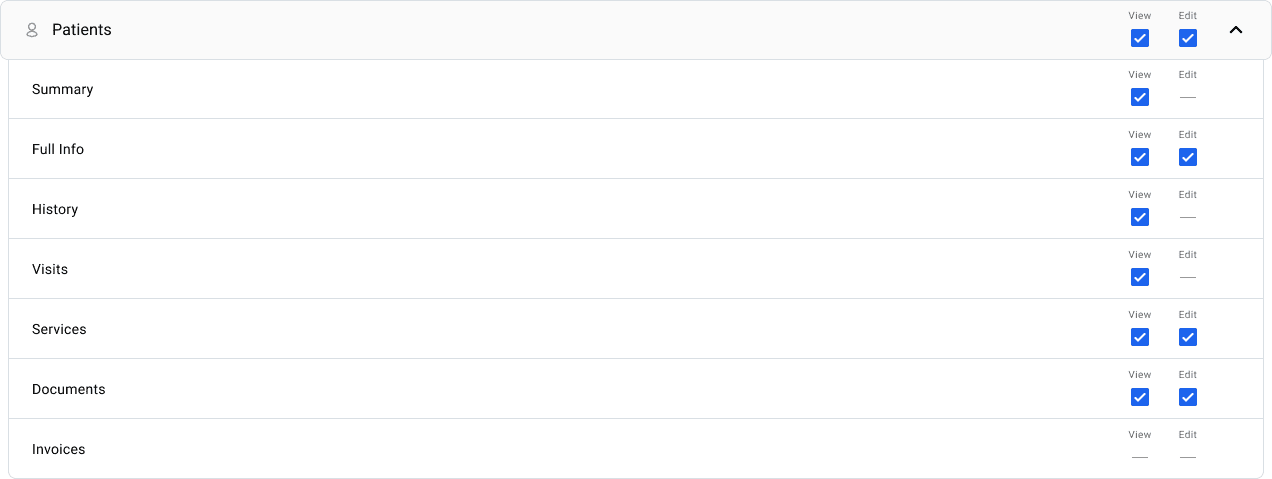
Separate viewing from making changes
Where both options are available, View and Edit controls let you decide whether someone can read information or also change it.
A staff member with viewing access can open the relevant records and review their details. Editing actions remain unavailable.
For example, someone responsible for checking invoices can review them without changing invoice details or recording payments. You can grant editing access separately when their responsibilities require it.
Keep role defaults and individual adjustments
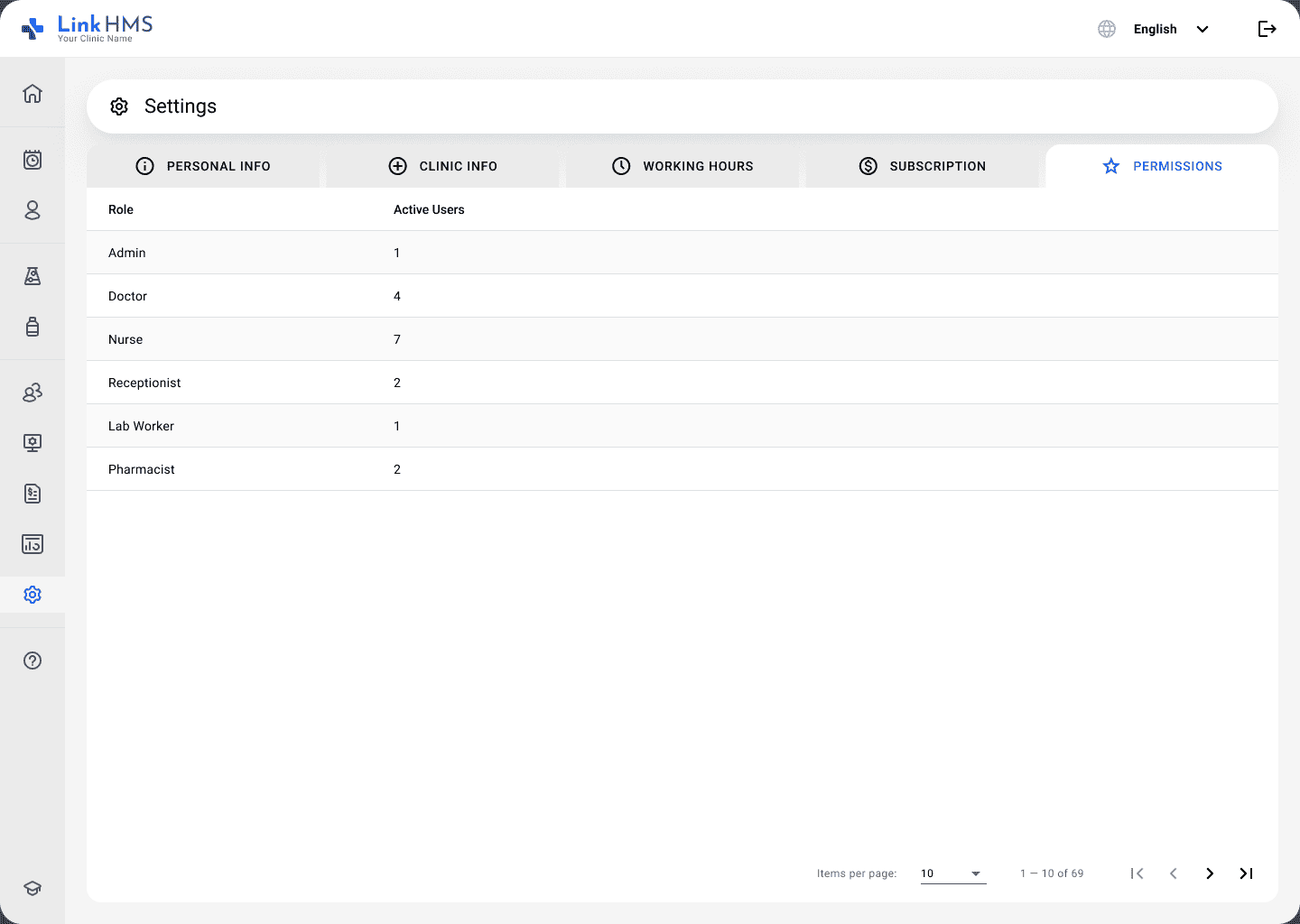
Role templates still provide a standard set of permissions for each role. Team members follow those defaults until an admin makes an individual adjustment.
Updating a role template applies the change to members who still follow it. Members with individually adjusted permissions keep their own settings.
If someone no longer needs a custom setup, Reset Permissions returns them to the current defaults for their role.
Where to find the new settings
To adjust one person’s access, open Human Resource, select the team member, and go to the Permissions tab.
To manage the standard permissions for a role, open Settings → Permissions.
Changes save automatically. Start with the team members whose responsibilities differ from the rest of their role, and adjust the access they need.